Nov 292013
 

In the previous post I wrote about building home NAS/HTPC with ZFS on Linux. Here I’d like to talk a bit about ZFS as a RAID manager and filesystem.

ZFS Zpool

ZFS was originally developed for Solaris, by then Sun Microsystems. It has since been ported to Linux in two flavors: FUSE and native kernel module. Unlike the latter, the former run in userland and, owing to being in user-space, has a rather flexible configuration (in terms of setting it up and running it) than kernel modules. I have had an interesting run with custom kernel modules when I upgraded Ubuntu, which broke my zpool, that I’ll get to in a bit. I haven’t tried running ZFS with FUSE, but I’d expect it to have lower complexity. For the best performance and highest integration, I went with native kernel support.

Of the biggest issues with kernel modules is the question of stability. One certainly doesn’t want an unstable kernel module. Doubly so if it manages our valuable data. However the ZFS on Linux project is very stable and mature. In the earlier days there were no ZFS boot loaders, so the boot drive couldn’t run ZFS. Grub2 already supports ZFS (provided ZFS module is installed correctly and loaded before it,) but I had no need for it. FUSE would do away with all of these dependencies, but I suspected it also means ZFS on boot drive wouldn’t be trivial either, if at all possible.

As explained in the previous post, I used a two flash drives in RAID-1 with ext4 for the boot drive. However, soon after having ran the system for a couple of weeks, and filled it with most of my data, I “moved” /usr, /home and /var to the zpool. This reduces the load on the flash drives and potentially increases the performance. I say “potentially” because a good flash drive could be faster than spinning disks (at least for I/O throughput and for small files) and the fact that it doesn’t share the same disk (especially spindle disks) makes for higher parallel I/O throughput. But I was more concerned about the lifetime of the flash drives and the integrity of the data than anything. Notice that /var is heavily written to, mostly in the form of logs, while /usr and /home are very static (unless one does exceptionally high I/O in their home folder,) and it’s mostly reads. I left /bin and /lib on the flash drive along with /boot.

Installation

Once the hardware is assembled and we can run it (albeit only to see the BIOS,) we can proceed to creating the boot drive and installing the OS and ZFS. Here is a breakdown of what I did:

  1. Download Ubuntu Minimal: https://help.ubuntu.com/community/Installation/MinimalCD
  2. Create bootable USB flash drive using UnetBootin: http://unetbootin.sourceforge.net/
  3. Insert the USB flash drives (both bootable and target boot) and start the PC, from the bios make sure it boots from the bootable flash drive.
  4. From the Ubuntu setup choose the Expert Command-Line option and follow the steps until partitioning the drive.
  5. Partition the flash drives:
    1. Create two primary Raid partitions on each drive, identical in size on both flash drives. One will be used for Swap and the other RootFS. The latter must be marked as bootable.
    2. Create software Raid-0 for one pair of the partitions and set it for Swap.
    3. Create software Raid-1 for the other pair of the partitions and format it with ext4 (or your prefered FS,) set the mount to be / and options ‘noatime’.
    4. Full instructions for these steps (not identical though) here: http://www.youtube.com/watch?v=z84oBqOxsD0
    5. Allow degraded boot and resliver with a script. Otherwise, booting fails with a black screen that is very unhelpful.
  6. Complete the installation by doing “Install base system,” “config packages,” “select and install software,” and finally “Finish installation.”
  7. Remove the bootable USB flash drive and reboot the machine into the Raid bootable USB we just created.
  8. Optional: Update the kernel by downloading the deb files into a temp folder and executing sudo dpkg -i *.deb. See http://www.upubuntu.com/2013/09/installupgrade-to-linux-kernel-311.html for ready script and commands.
  9. Install ZFS:
    1. # apt-add-repository –yes ppa:zfs-native/stable
    2. # apt-get update
    3. # apt-get install ubuntu-zfs
  10. Optional: Move /tmp to tmpfs (ram disk):
    1. # nano /etc/fstab
    2. Append the following: tmpfs /tmp tmpfs defaults,noexec,nosuid 0 0
  11. Format the drives (repeat for all):
    1. # parted –align=opt /dev/sda
    2. (parted) mklabel gpt
    3. (parted) mkpart primary 2048s 100%
  12. Find the device names/labels by ID: # ls -al /dev/disk/by-id
  13. Create the zpool with 4096b sectors:
    # zpool create -o ashift=12 tank raidz2 scsi-SATA_WDC_WD30EFRX-68_WD-WMC1T0000001 scsi-SATA_WDC_WD30EFRX-68_WD-WMC1T0000002 scsi-SATA_WDC_WD30EFRX-68_WD-WMC1T0000003 scsi-SATA_WDC_WD30EFRX-68_WD-WMC1T0000004 scsi-SATA_WDC_WD30EFRX-68_WD-WMC1T0000005 scsi-SATA_WDC_WD30EFRX-68_WD-WMC1T0000006
    An optional mountpoint may be specified using -m switch. Example: -m /mnt/data. The default mountpoint is the pool name in the root. In my case /tank.
  14. Optional: Enable deduplication (see notes below): # set dedup=on tank
  15. Optional: Enable compression by default: # set compression=gzip-7 tank
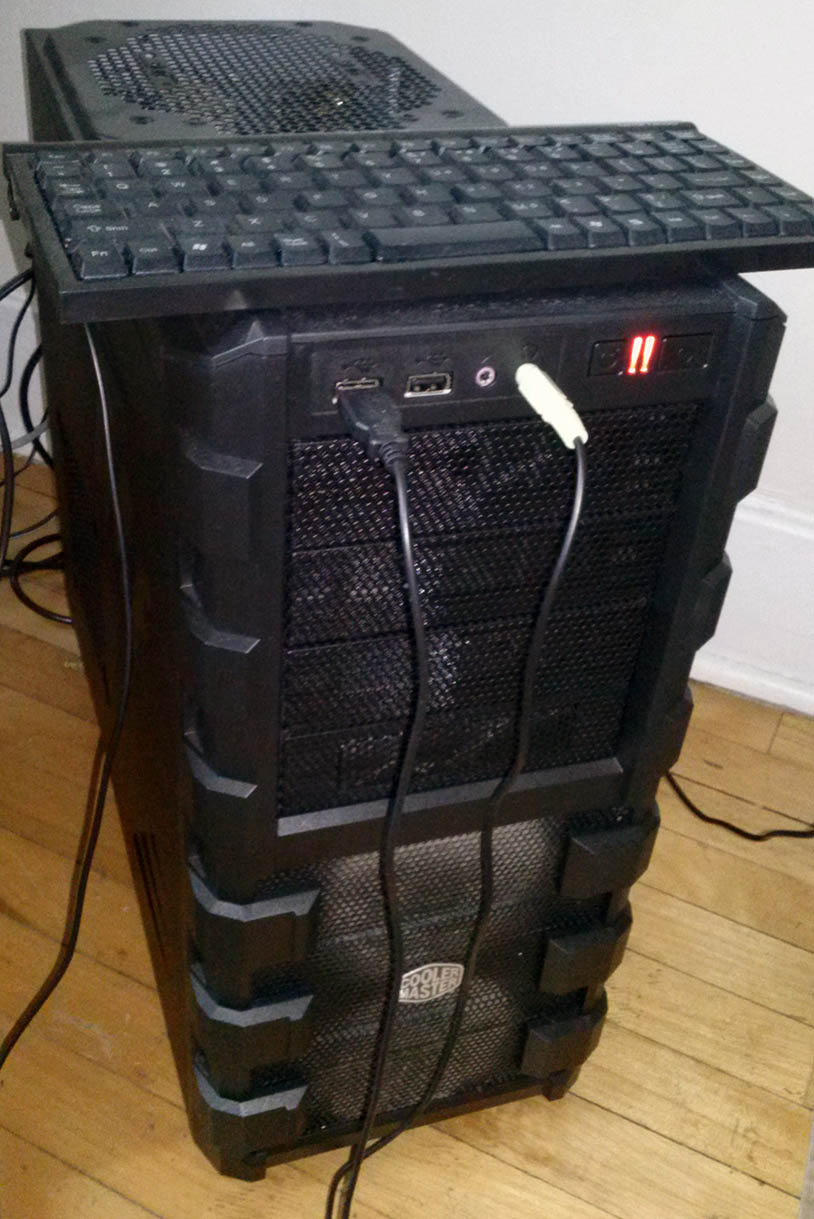
Outside the box with the compact format keyboard and the 2x 120mm fans blowing on the drives visible.

Outside the box with the compact format keyboard and the 2x 120mm fans blowing on the drives visible.

Notes

A few notes on my particular choices:

First, I chose to have a swap drive mostly to avoid problems down the road. I didn’t know what software might one day need some extra virtual memory and didn’t want the system to be limited by RAM. Speaking of RAM, I was rather short on it and would absolutely have loved to have a good 16GB. Sadly, prices have been soaring for the past couple of years and they haven’t stopped yet. I had to do with 8GB. Also, my motherboard is limited to 16GB (a choice based on my budget). So when push comes to shove, I can’t go beyond 16GB. I also had sufficient boot disk space, so wasn’t worried that I’d ran out. Of course the swap drive is raid-0 as performance is always critical when already swapping and there are no data integrity concerns (a corruption will probably take down the process in question, but that’d threat the boot drive as well). Raid-1 is used for the boot partition, which is a mirror, meaning I had two copies of my boot data.

Second, alignment is extremely important for both flash drives and large-format drives (a.k.a. 4096-byte sectors). Flash drives comes from factory formatted with the correct alignment. There is no need to repartition or reformat the drives, unless we need to change the filesystem or have special needs. However if we must, the trick is to create the partition at an offset of 2048 sectors (or a megabyte). This ensures that even if the internal logical block (which is the smallest unit used by the flash firmware to write data) is as large as 1024KB, it will still be correctly aligned. Notice that logical units of 512KB are not uncommon.

Device Boot Start End Blocks Id System
/dev/sdg1 2048 11327487 5662720 fd Linux raid autodetect
/dev/sdg2 * 11327488 30867455 9769984 fd Linux raid autodetect

ZFS will do the right thing if we create the pool on the root of the drive and not partitions; it will create a correctly aligned partition. I manually created partitions beforehand mostly because I wanted to see whether or not the drives were native large-format or it was emulating. However we absolutely must mark the block size to be 4096 when creating the pool, otherwise ZFS might not detect the correct sector size. Indeed, for my WD RED drives, the native sector size is advertised as 512! Marking the block size is done by ‘ashift’ and it’s given in powers of two; for 4096 ‘ashift’ is set to 12.

Third, it is crucial to create the pool using disk IDs and not their dynamically assigned names (eg. sda, hdb, etc.). The IDs will not change as they are static, but the assigned names almost certainly will and that will cause headache. I had to deal with this problem (more later) even though, and as you can see in the command above, I had used the disk IDs when creating my zpool. Notice that using the disk ID will also save you from the common mistake of create the zpool using the partitions of the disk, rather than the root of disk (the IDs are unique to the disks but the partition and disk have each its own assigned name).

Trouble in paradise

I’ll fast forward to discuss a particular problem I faced that is a valuable lesson. After upgrading from Ubuntu raring (13.04) to saucy (13.10) the pool showed up as UNAVAILABLE. After the initial shock had passed I started trying to understand what had happened. Without having an idea of what the issue is, it’s near impossible to solve it. UNAVAILABLE, as scary it looks at you, doesn’t say much as to why the system couldn’t find it.

# zpool status
pool: tank
state: UNAVAIL
status: One or more devices could not be used because the label is missing or invalid.  There are insufficient replicas for the pool to continue functioning.
action: Destroy and re-create the pool from a backup source.
see: http://www.sun.com/msg/ZFS-8000-5E
scan: none requested
config:NAME        STATE     READ WRITE CKSUM
zfs         UNAVAIL      0     0     0  insufficient replicas
raidz2-0  UNAVAIL      0     0     0  insufficient replicas

First thing I did was a reality check; sure enough my home was on the boot (flash) drive. Good thing it wasn’t very outdated since I had moved /usr, /home and /var to the zpool. I was glad the machine booted and I had essentially everything I needed to troubleshoot. The link in the zpool output above turned out to be less than useful.

The real hint in the status message above is the “label is missing” part. After reading on the status and googling parts of the messages above, I wasn’t any closer to understanding the problem. I went back to my shell and listed the devices. I could see the 6 drives. Clearly they are detected. So it’s not a bad motherboard or controller issue, and possibly not a dead drive either. After all, it’s a zpool-2 (equivalent to raid-6) so unless three drives failed at once, or half my stock, “there will be sufficient replicas for the pool to continue functioning.”

Clearly what happened was related to the upgrade. That was my biggest hint as to what triggered it. This wasn’t helpful in googling, but I had to keep it in mind. At this point I was already disappointed that the upgrade wasn’t seamless. I listed the devices and started looking for clues. I had created the pool using the device IDs, which are unique and never change from system to system. So my expectation was that it wasn’t a drive mapping issue. Alas, it was precisely a problem of drive mapping.
The reason turned out to be that the “scsi” IDs that I’ve used to create the pool were now no longer listed under /dev/disk/by-id/. Instead, there were only the “ata” IDs. At the time of creating the pool I had both “scsi” and “ata” IDs. I chose the former for one reason or another. Turns out that the “scsi” names were removed from the /dev/disk/by-id/ listing.

The solution turned out to be rather simple, finding it was anything but. By exporting and importing the pool the new IDs were detected and the pool reconstructed.

# zpool export tank
# zpool import

After exporting, zpool status would complain that there were no pools. During importing, zfs detected the drives and mapped them correctly.

Mounting Trouble

At this point I was happy again, but for a short while. Turns out I wasn’t done yet. The three root directories I had moved to the zpool were not mounting anymore. I could forcefully mount them (with great difficulty as every time it’d complain it couldn’t mount,) only to find the directories were the original ones on the boot drive and not the zpool versions. The way it was supposed to work was by mounting the zpool directory to the same mountpoint as the boot drive ones, they masked the latter.

After a rather long chase, and many reboots to see if my changes stuck or not, I found out that the process responsible for mounting is mountall. However ZFS has its own custom build, which apparently got reverted with the upgrade.
This page has all the details about mountall and ZFS and troubleshooting. First thing I did was:

# apt-cache policy mountall
mountall:
Installed: 2.48build1-zfs2
Candidate: 2.51-zfs1
Version table:
2.52 0
500 http://ca.archive.ubuntu.com/ubuntu/ saucy/main amd64 Packages
2.51-zfs1 0
1001 http://ppa.launchpad.net/zfs-native/stable/ubuntu/ saucy/main amd64 Packages
*** 2.48build1-zfs2 0
100 /var/lib/dpkg/status

Clearly I’m using an old mountall version. How about zfs?

# apt-cache policy ubuntu-zfs
ubuntu-zfs:
Installed: 7~raring
Candidate: 7~saucy
Version table:
7~saucy 0
1001 http://ppa.launchpad.net/zfs-native/stable/ubuntu/ saucy/main amd64 Packages
*** 7~raring 0
100 /var/lib/dpkg/status

Good: there is a saucy version. Bad: Ubuntu upgrade didn’t get it automatically. I suspect this has to do with the fact that I had used the raring package URL. Still, one expects a bit better upgrade support when it comes to kernel modules that can lock one out of the machine.

Upgrading ZFS to Saucy

First, I appended the saucy PPAs to /etc/apt/sources.list:

# ZFS
deb http://ppa.launchpad.net/zfs-native/stable/ubuntu saucy main
deb-src http://ppa.launchpad.net/zfs-native/stable/ubuntu saucy main

And reinstalled ZFS to force removing the current version for the newer one.

# apt-get install --reinstall ubuntu-zfs
Reading package lists... Done
Building dependency tree
Reading state information... Done
The following packages were automatically installed and are no longer required:
avahi-daemon avahi-utils libavahi-core7 libdaemon0 libnss-mdns
Use 'apt-get autoremove' to remove them.
Suggested packages:
zfs-auto-snapshot
The following packages will be upgraded:
ubuntu-zfs
1 upgraded, 0 newly installed, 0 to remove and 348 not upgraded.
Need to get 1,728 B of archives.
After this operation, 0 B of additional disk space will be used.
Get:1 http://ppa.launchpad.net/zfs-native/stable/ubuntu/ saucy/main ubuntu-zfs amd64 7~saucy [1,728 B]
Fetched 1,728 B in 0s (6,522 B/s)
(Reading database ... 89609 files and directories currently installed.)
Preparing to replace ubuntu-zfs 7~raring (using .../ubuntu-zfs_7~saucy_amd64.deb) ...
Unpacking replacement ubuntu-zfs ...
Setting up ubuntu-zfs (7~saucy) ...

Now, to check if all is as expected:

# apt-cache policy ubuntu-zfs
ubuntu-zfs:
Installed: 7~saucy
Candidate: 7~saucy
Version table:
*** 7~saucy 0
1001 http://ppa.launchpad.net/zfs-native/stable/ubuntu/ saucy/main amd64 Packages
100 /var/lib/dpkg/status

# grep parse_zfs_list /sbin/mountall
Binary file /sbin/mountall matches

# apt-cache policy mountall
mountall:
Installed: 2.52
Candidate: 2.51-zfs1
Version table:
*** 2.52 0
500 http://ca.archive.ubuntu.com/ubuntu/ saucy/main amd64 Packages
100 /var/lib/dpkg/status
2.51-zfs1 0
1001 http://ppa.launchpad.net/zfs-native/stable/ubuntu/ saucy/main amd64 Packages

Rebooting was all I needed from this point on and all was finally upgraded and fully functional.
Nov 112013
 

I have recently built a home NAS / HTPC rig. Here is my experience from research, building it, and experimentation, for the interested in building a similar solution or to improve upon it… or just for the curious. I ended up including more details and writing longer than I first planned, but I guess you can skip over the familiar parts. I’d certainly have appreciated reading a similar review or write up while shopping and researching.

Reds-New

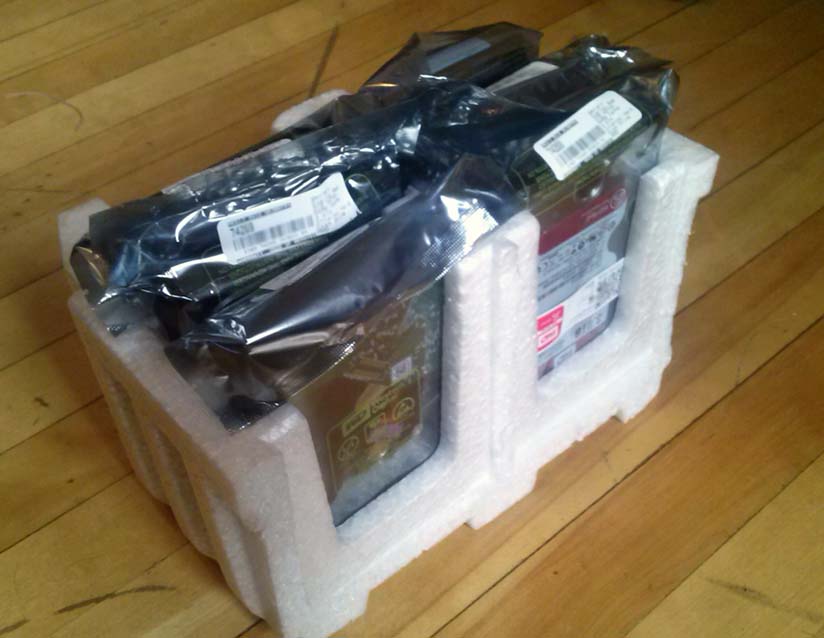
6x 3TB WD RED drives cut from the same stock.

I have included a number of benchmarks to give actual performance numbers. But first, the goals:

Purpose: RAID array with >= 8TiB usable space, to double as media server.

Cost: Minimum with highest data-security.

Performance requirements: Low write loads (backups, downloads, camera dumps etc.), many reads >= 100mbps with 2-3 clients.

TL;DR: ZFS on Linux, powered by AMD A8 APU, 2x4GB RAM and 2x16GB flash drive in Raid-1 boot drive, backed by 6x3TB WD Red in Raidz2 (Raid-6 equivalent) for under $1400 inc. tax + shipping. The setup was the cheapest that met or exceeded my goals and is very stable and performing. AMD’s APUs are very powerful for ZFS and transcoding video, RAM is sufficient for this array size and flash drives are more than adequate for booting purposes (with the caveat of low reliability in the long-run). ZFS is a very stable and powerful FS with advanced and modern features at the cost of learning to self-serve. The build gives 10.7TiB of usable space with double-parity and transparent compression and deduplication, with ample power to transcode video, at a TCO of under $125 / TiB (~2x raw disk cost). Reads/Writes are sustained above 350MB/s with gzip-9 but without deduplication.

This is significantly cheaper than ready NAS solutions, even when ignoring all the advantages of ZFS and generic Linux running on a modern quad core APU (compare with Atom or Celeron that often plague home NAS solution).

Research on hardware vs. software RAID

The largest cost of a NAS are the drives. Unless one wants to spend an arm and a leg on h/w raid cards, that is. Regardless, the drives were my first decision point. Raid-5 gives 1 disk redundancy, but due to high resilver time (rebuilding a degraded array) chances of secondary failure increase substantially during the days and sometimes weeks that resilvering takes. Drive failures aren’t random or independent occurrences, as drives from the same batch, used in the same array, tend to have very similar wear and failure reasons. As such, Raid-5 was not good enough for my purposes (high data-security). Raid-6 gives 2 drive redundancy, but requires a minimum of 5 drives to make it worthwhile. With 4 drives, 2 used for parity, Raid-6 is about as good as a mirror. Mirrors however have the disadvantage of being susceptible to failure if the 2 drives that fail happen to be the same on both sides of the mirror. Raid-6 is immune to this, but IO performance is significantly poorer than mirroring.

Resilver time could be reduced significantly with true h/w raid cards. However they cost upwards of $300 for the cheapest and realistically $600-700 for the better ones. In addition, most give peak performance with backup battery, which costs more and will need some maintenance I expect. At this point I started comparing h/w with s/w performance. My personal experience with software data processing told me that a machine that isn’t under high-load, or is dedicated for storage, should do at least as good as, if not better than, the raid card’s on-board processor. After all, the cheapest CPUs are much more powerful, have ample fast cache and with system RAM that is in the GBs running at least at 1333 Mhz, they should beat h/w raid easily. The main advantage of h/w raid is that, with the backup battery, it can flush cached data to disk even on power failure. But this assumes that the drives still have power! For a storage box, everything is powered from the same source. So the same UPS that will keep the drives spinning will also keep the CPU and RAM pumping data long enough to flush the cache to disk. (This is true provided no new data is being written when on battery power.) The trouble with software raid is that there is no abstraction of the disks to the OS, so it’s much harder to maintain (the admin will maintain the raid in software). Also, resilvering with h/w will probably be lighter on the system as the card will handle the IO without affecting the rest of the system. But, I was to accept the performance penalty I was probably going to meet my goals even during resilvering. So I decided to go with software Raid.

The best software solutions were the following: Linux Raid using MD, BtrFS or ZFS. The first is limited to traditional Raid-5 and Raid-6 and is straightforward to use, is bootable and well-supported, but it lacks any modern features like deduplication, compression, encryption or snapshots. BtrFS and ZFS have these features, but are more complicated to administer. Also, BtrFS is still not production-ready, unlike ZFS. So ZFS it was. Great feedback online on ZFS too. One important note on software raid is that they don’t play well with h/w raid cards. So if there is a raid controller between the drives and the system, it should be set to bypass the devices or work in JBOD mode. I’ll have more to say on ZFS in subsequent posts.

To reach 8TiB with 2 drive redundancy I had to either go with 4x4TB drives or 5x3TB. But with ZFS (RaidZ) growing the array is impossible. The only solutions are to either add larger drives (one at a time and resilver until all have larger capacity and then the new space becomes available to the pool,) or, to create a new vdev with a new set of drives and extend the pool. While simply adding a 6th drive to the 5 existing would have been a sweet deal, when the time comes I could upgrade all drives with larger one and enjoy new drive longevity and extra disk space. But first I had to have some headroom, so it was either 5x4TB = 12TB or 6x3TB=12TB.

Which drives? The storage market is still recovering from the Thailand flood. Prices are coming down, but they are still not great. The cheapest 3TB are very affordable, but they are 7200 rpm. Heat, noise and power bill are all high with 6 drives in an enclosure. They also come with 1 year warranty! Greens are cool and low on power requirements, but they are more expensive. The warranty isn’t much better, if at all longer. WD Red drives cost ~$20 more than the greens, come with all the advantages of 5400 rpm drive, are designed for 24/7 operation and have 3 year warranty. The only disadvantage of 5400 rpm drives is lower IOPS. But 7200 rpm doesn’t make a night-and-day difference anyway. Considering that it’s more likely than not that more than 1 drive will fail during 3 years, the $20 premium is a warranty purchase if not for the advantage of NAS drive vs. home usage. There was no 4 TB Red to consider at the time (Seagate and WD have “SE” 4TB drives that cost substantially more), although the cost per GB would be the same, it was outside my budget (~$800 for the drives) and I didn’t have immediate use for 16TB space of usable to justify the extra cost.

Computer hardware

Inside-Wide

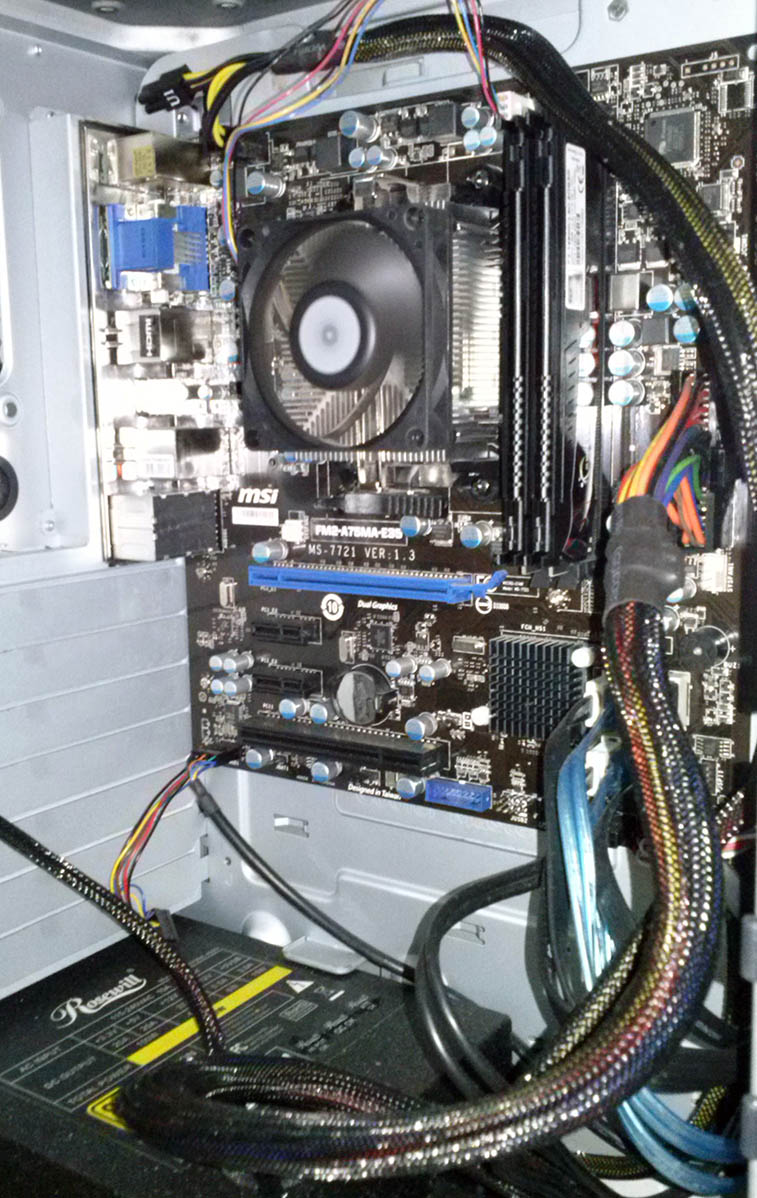
AMD’s APU with its tiny heatsink and 2x 4GB DIMMs. Noticeable is the absence of a GPU (which is on the CPU chip).

I wanted to buy the cheapest hardware I could buy to do the job. I needed no monitor, just an enclosure with motherboard, ram and cpu. The PSU had to be solid to supply clean, stable power to the 6 drives. Rosewill’s Capstone is one of the best on the market at a very good price. The 450W version delivers continuous 450W power, not peak (which is probably in the ~600W range). I only needed ~260W continuous plus headroom for initial spin up. The case had to be big enough for the 6 drives + front fans for keeping the already cool-running drives even cooler (drive temperature is very important for data integrity and drive longevity). Motherboards with > 6 SATA ports are fewer and typically cost significantly more than with 6 or less. With 6 drives in raid, I was missing a boot drive. I searched high and low for a PCI-e SSD, but it seems there was nothing on offer for a good price, not even used ones (even the smallest ones were very expensive). Best price was for WD Blue 250GB (platter) for ~$40, but that was precious port that it would take, or cost me more in motherboard with 7 SATA ports. My solution was to use a flash drive. They are SSD and they come in all sizes and at all prices. I got two A-DATA 16GB drives for $16 each, thinking I’d keep the second one for personal use. It was after I placed the order that I thought I should RAID-1 the two drives to get better reliability.

With ZFS, RAM is a must, especially for deduplication (if desired). It is recommended to have 1-2GB for each TB of storage. So far, I see ~145 bytes / block used on core (RAM) which for ~1.3TiB of user data in 10million blocks = 1382MB of RAM. Those 10million blocks were used by <50K files (yes, mostly documentaries and movies at this point). The per-block requirement goes down with increased duplicate blocks, so it’s important to know how much duplication there are in those 1.3TiB. In this particular case, almost none (there were <70K duplicate bocks in those 10million). So if this was all the data I had, I should disable dedup and save myself RAM and processing time. But I still have ~5TiB of data to load with all of my backups, which sure have a metric ton of dups in them. Bottom line: 1GB of ram per 1TiB of data is a good rule of thumb, but it looks like it’s a worse-case scenario here (and that would leave little room for file caching). So I’m happy to report that my 8GB ram will do OK all the way to 8TiB of user data and realistically much more as I certainly have duplicates (yes, had to go for 8GB as budget and RAM price hike of 40-45% this year alone didn’t help. Had downwards price trends continued from last year, I should have gotten 16GB for almost the same dough). Updates on RAM and performance below.

CPU wise, nothing could beat AMD APU, which includes Radeon GPU, in terms of price/performance ratio. I could either go for dual core at $65 or quad core for $100 and upgrade L2 cache from 1MB to 4MB and better GPU core. I went for the latter to future proof video decoding and transcoding and give ZFS ample cycles for compression, checksum, hashing and deduplication. The GPU in the CPU also loves high-clock RAM. After shopping for a good pair of RAMs that work in dual-pump @ 1600Mhz, I found 1866Mhz ones for $5 more that is reported to clock to over 2000Mhz. So G.Skill wins the day yet again for me as is the case on my bigger machine with 4x8GB @ 1866 G.Skill. I should add that my first choice in both cases had been Corsair as I’ve been a fan for over a decade. But at least on my big build they failed me as they weren’t really quad-pump (certainly not at the reported frequency and G.Skill has overclocked to 2040Mhz from 1866Mhz while the CPU is at 4.6Ghz, but that the big boy, not this NAS/HTPC).

Putting it all together

I got the drives for $150 each and the PC cost me about $350. Two 16GB USB3.0 flash drives are partitioned for swap and rootfs. Swap is on Raid-0, ext4 on Raid-1. Even though I can boot off of ZFS, I didn’t want to install the system on the raid array, in case I need to recover it. It also simplifies things. The flash drives are for booting, really. /home, /usr, and /var should go on ZFS. I can backup everything to other machines and all I’d need is to dd the flash drive image onto a spare one to boot that machine in case of a catastrophic OS failure. Also, I keep a Linux Rescue disk on another flash drive at hand at all times. The rescue disk automatically detects MD partitions and will load mdadm and let me resilver a broken mirror. One good note is to set mdadm to boot in degraded mode and rebuild or send an email to get your attention. You probably don’t want to go in with a rescue disk and a blank screen to resilver the boot raid.

The 6 Red drives run very quietly and are just warmer than the case metal (when ambient is ~22C), enough that they don’t feel metallic-cold at sustained writing thanks to two 120mm fans blowing on them. Besides that, no other fans are used. AMD comes with an unassuming little cooler that is less loud than my 5 year old laptop. A-Data in raid gives upwards of 80MB of sustained reads (average over full drive dd read) and drop to ~19MB of sustained write speed. Bursts can reach 280MB/s and writes a little over 100MB/s. Ubuntu Minimal 13.04 was used (which comes with Kernel 3.8) and kernel upgraded to 3.11, ZFS 28 (the latest available for Linux, Solaris is at 32, which has transparent encryption) installed and 16.2TiB of raw disk space reported after Raidz-2 zpool creation and 10.7TiB of usable space (excluding parity). The system boots faster than the monitor (a Philips 32” TV) turns on (that is to say in a few seconds). The box is connected with a Cat-5 to the router, which has a static IP assigned to it (just for my sanity).

I experimented with ZFS for over a day just to learn to navigate it while reading on it before scratching the pool for the final build. Most info online are out of date (from 2009 when deduplication was all the rage in FS circles) so care must be taken when reading about ZFS. Checking out the code, building and browsing it certainly helps. For example, online articles will tell you Fletcher4 is the default checksum (it is not) and that one should use it if they want to improve dedup performance (instead of the much slower sha256), but the code will reveal that deduplication is defaulted and forced to sha256 checksum and that is the default even for on-disk checksums for integrity checks. Therefore, switching to Fletcher4 will only increase the risk of on-disk integrity checking, without affecting deduplication at all (Fletcher4 was removed from the dedup code when a severe bug was found due to endianness). The speed should only be worse with Fletcher4 if dedup is enabled because now both checksums must be done (without dedup Fletcher4 should improve the performance at the cost of data security as Fletcher4 is known to have a much higher collision rate than sha256).

ZFS administration is reasonably easy and it does all the mounting transparently for you. It also has smb/nsf sharing administration built-in, as well as quotas and acl support. You can set up as many filesystems as necessary anywhere you like. Each filesystem looks like a folder with subfolders (the difference between the root of a filesystem within another or just a plain subfolder is not obvious). The advantage is that each filesystem has its own settings (which are inherited from the parent by default) and statistics (except for dedup stats, which are pool-wide). Raid performance was very good. Didn’t do extensive tests, but sustained reads reached 120MB/s. Ingesting data from 3 external drives connected over USB 2.0 is running at 100GB/hour using rsync. Each drive is writing into a different filesystem on the same zpool. One is copying RAW/Jpg/Tif images (7-8MB each) on gzip-9 and two copying compressed Video (~1-8GB) and SHN/FLAC/APE audio (~20-50MB) on gzip-7. Deduplication is enabled. Checksum is SHA256. ZFS has background integrity check and auto-rebuild of any corrupted data on disk which does have a non-negligible impact on the write rates as the Red drives could do no more than ~50 random read IOPS and ~110 random write IOPS, but for the aforementioned load each levels at ~400 IOPS per drive since most writes are sequential. These numbers fluctuate with smaller files such that the IOPS drops down to 200-250 per drive and average ingestion is 1/3rd at ~36GB/hour. This is mostly due to the FS overhead on reads and writes that force much higher seek rates vs sequential writes. CPU is doing ~15-20% user and ~50% kernel, leaving ~25% idle on each of the 4 cores at peak times and drops substantially otherwise. Reading iostats show about 30MB/s sustained reading rate from the source drives combined and writes on the Reds that average 50MB/s but spike at 90-120MB/s (this includes parity which is 50% of the data and updates of FS structure, checksums etc.)

Back

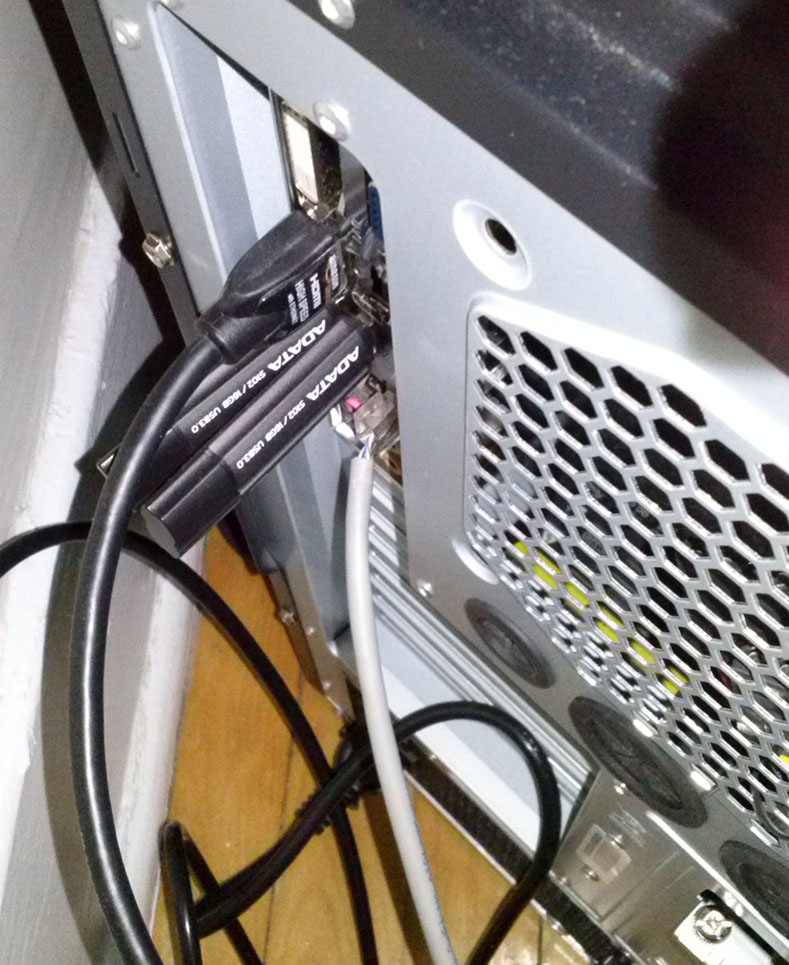
2x 16GB flash drives in RAID-1 as boot drive and HDMI connection.

UPDATE: Since I wrote the above, it’s been 3 days. I now have over 2TiB of data ingested (I started fresh after the first 1.3TiB). The drives sustain at a very stable ~6000KB/s writes and anywhere between 200 and 500 IOPS (depending on how sequential they are). Typically it’s ~400 IOPS and ~5800KB/s. This translates into ~125GiB/hour (about 85GiB/hour of user data ingestion), including parity and FS overhead. Even though with gzip-9 and highly compressible data the rate or writing goes down, I now am writing from 4 threads and the drives are saturated at the aforementioned rates. So at this point I’m fairly confident the bottleneck of ingestion are the drives. Still, 85GiB/hour is decent for the price tag. I haven’t done any explicit performance tests because that was never in my goals. I’m curious to see the raw read/write performance, but this isn’t a raw Raid setup, so the filesystem overhead is always in the equation and that will be very much variable as data fills up and dedup tables grow. So the numbers wouldn’t be representative. Still, I do plan to do some tests when I ingest my data and have a real-life system with actual data.

Regarding compression, high-compression settings affect only performance. If the data is not compressible, the original data is stored as-is and no penalty for reading it is inured (I read the code,) nor is there extra overhead in storage (incompressible data typically grows a bit when compressed). So for archival purposes the penalty is slower ingestion speed. Unless modification will happen, slow and good compression is a good compromise as it does yield a few % points compression even on mp3 and jpg files.

With Plex Media Server installed on Linux, I could stream full HD movies over WiFi (thanks to my Asus dual-band router) transparently while ingesting data. Haven’t tried heavy transcoding (say HD to iphone) nor have I installed windows manager on Linux (AMD APUs show up in forums with Linux driver issues, but that’s mostly old and for 3D games etc.) Regarding the overhead of dedup, I can disable dedup per filesystem and remove the overhead for folders that don’t benefit anyway. So it’s very important to design the hierarchy correctly and have filesystems around file types. Worst case scenario: upgrade to 16GB RAM, which is the limit for this motherboard (I didn’t feel the need to pay an upfront premium for a 32GB max MB).

I haven’t planned a UPS. Some are religious about availability and avoiding hard power cuts. I’m more concerned about the environmental impact of batteries than anything else. ZFS is very resilient to hard reboots, not least thanks to its journaling and data checksums and background scrubbing (validating checksums and rebuilding transparently). I had two hard recycles that recovered transparently. I also know ztest which is a dev test tool does all sorts of crazy corruptions and kills and it’s reported that in 1million tests no corruptions were found.

Conclusion

For perhaps anything but the smallest NAS solutions, a custom build will be cheaper and more versatile. The cost is the lack of warranties of satisfaction (responsibility is on you) and the possibility of ending up with something underpowered or worse. Maintenance might be an issue as well, but from what I gather ready NAS solutions are known to be very problematic, especially when they show any issues, like failed drive or buggy firmware or management software. ZFS proved, so far at least, to be fantastic! Especially that deduplication and compression really work well and increase the data density without compromising integrity. I also plan to make good use of snapshots, which can be configured to auto-snapshot with a preset interval, for backups and code. I only miss transparent encryption from ZFS on Linux (Solaris got it, but it hasn’t been allowed to trickle down yet.) Otherwise, I couldn’t be more satisfied (except may be with 16GB RAM, or larger drives… but I would settle for 16GB RAM for sure.)

Parts

PCPartPicker part list: http://pcpartpicker.com/p/1GqNv
Price breakdown by merchant: http://pcpartpicker.com/p/1GqNv/by_merchant/
Benchmarks: http://pcpartpicker.com/p/1GqNv/benchmarks/

CPU: AMD A8-5600K 3.6GHz Quad-Core Processor ($99.99 @ Newegg)
Motherboard: MSI FM2-A75MA-E35 Micro ATX FM2 Motherboard ($59.99 @ Newegg)
Memory: G.Skill Sniper Series 8GB (2 x 4GB) DDR3-1866 Memory ($82.99 @ Newegg)
Storage: Western Digital Red 3TB 3.5″ 5400RPM Internal Hard Drive ($134.99 @ Newegg)
Case: Cooler Master HAF 912 ATX Mid Tower Case ($59.99 @ Newegg)
Power Supply: Rosewill Capstone 450W 80 PLUS Gold Certified ATX12V / EPS12V Power Supply ($49.99 @ Newegg)
Other: ADATA Value-Driven S102 Pro Effortless Upgrade 16GB USB 3.0 Flash Drive (Gray) Model AS102P-16G-RGY
Other: ADATA Value-Driven S102 Pro Effortless Upgrade 16GB USB 3.0 Flash Drive
Total: $1147.89
(Prices include shipping, taxes, and discounts when available.)
(Generated by PCPartPicker 2013-09-22 12:33 EDT-0400)

QR Code Business Card